Transactions
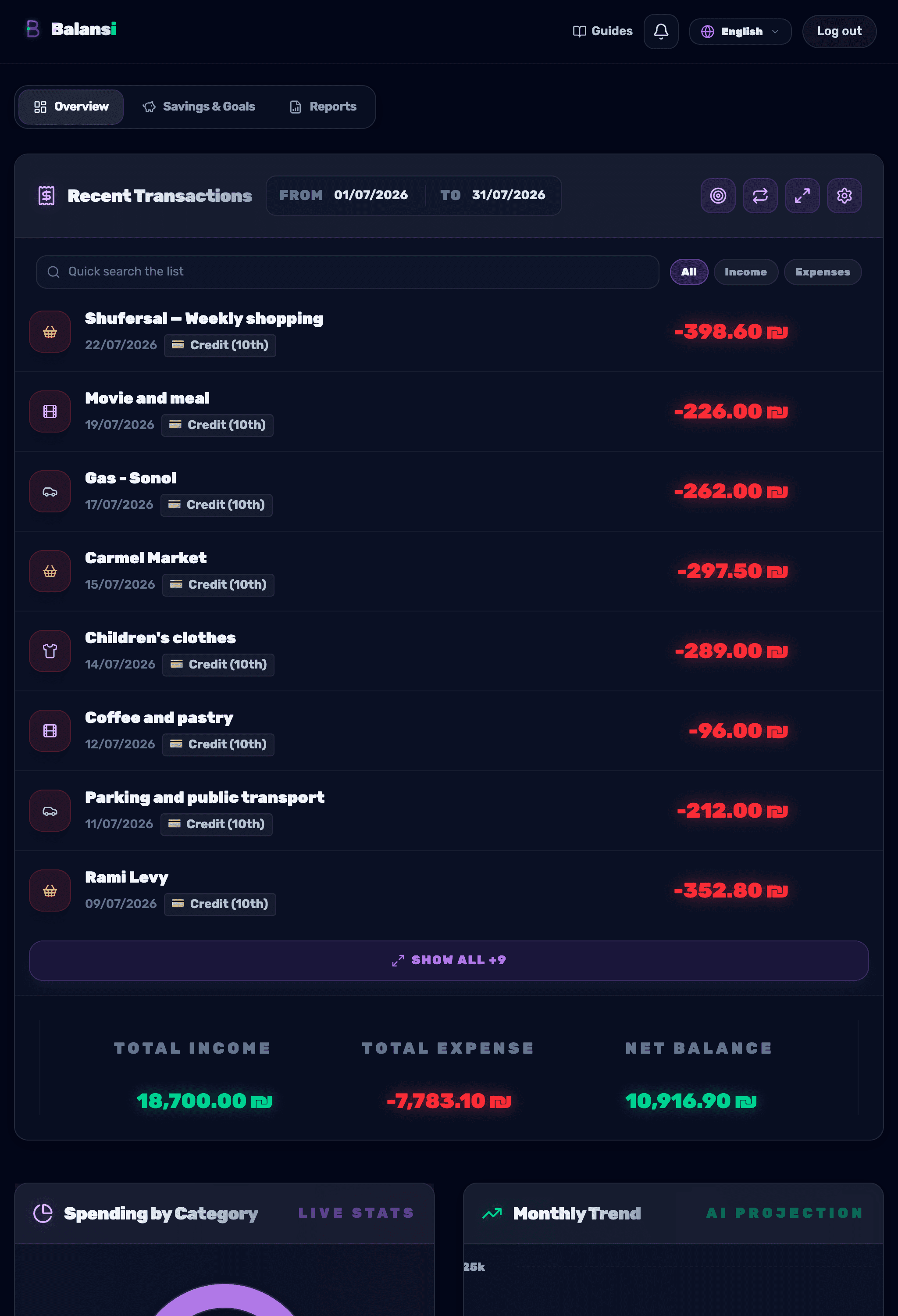
All your financial transactions in one place — here's how to add, edit, filter and view income and expenses exactly the way you like.
- 1
Add a new transaction
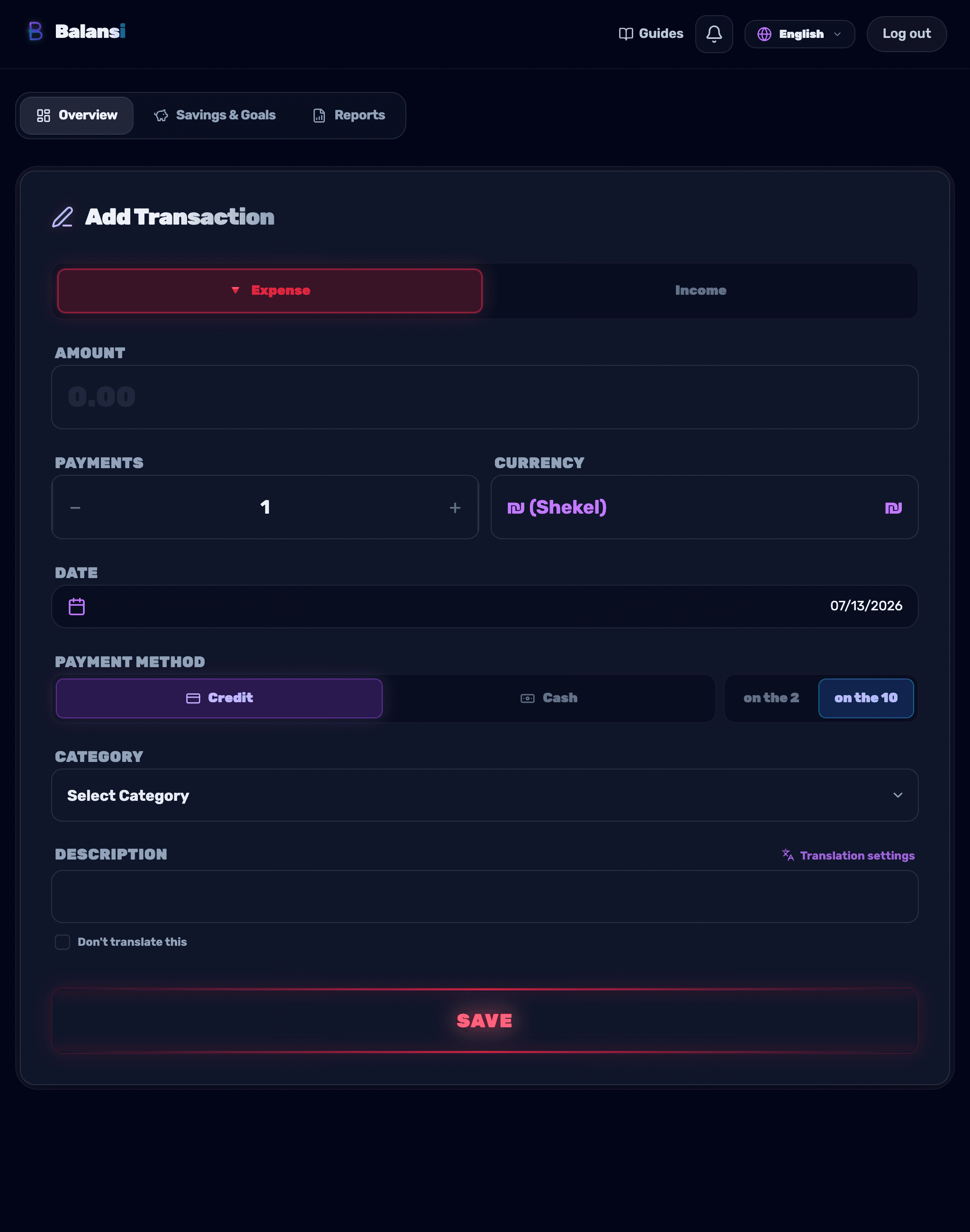
On the main page, tap Add transaction, choose the type — Income or Expense — and fill in the amount, description, date and category. Finish by tapping Save.
- 2
Edit an existing transaction
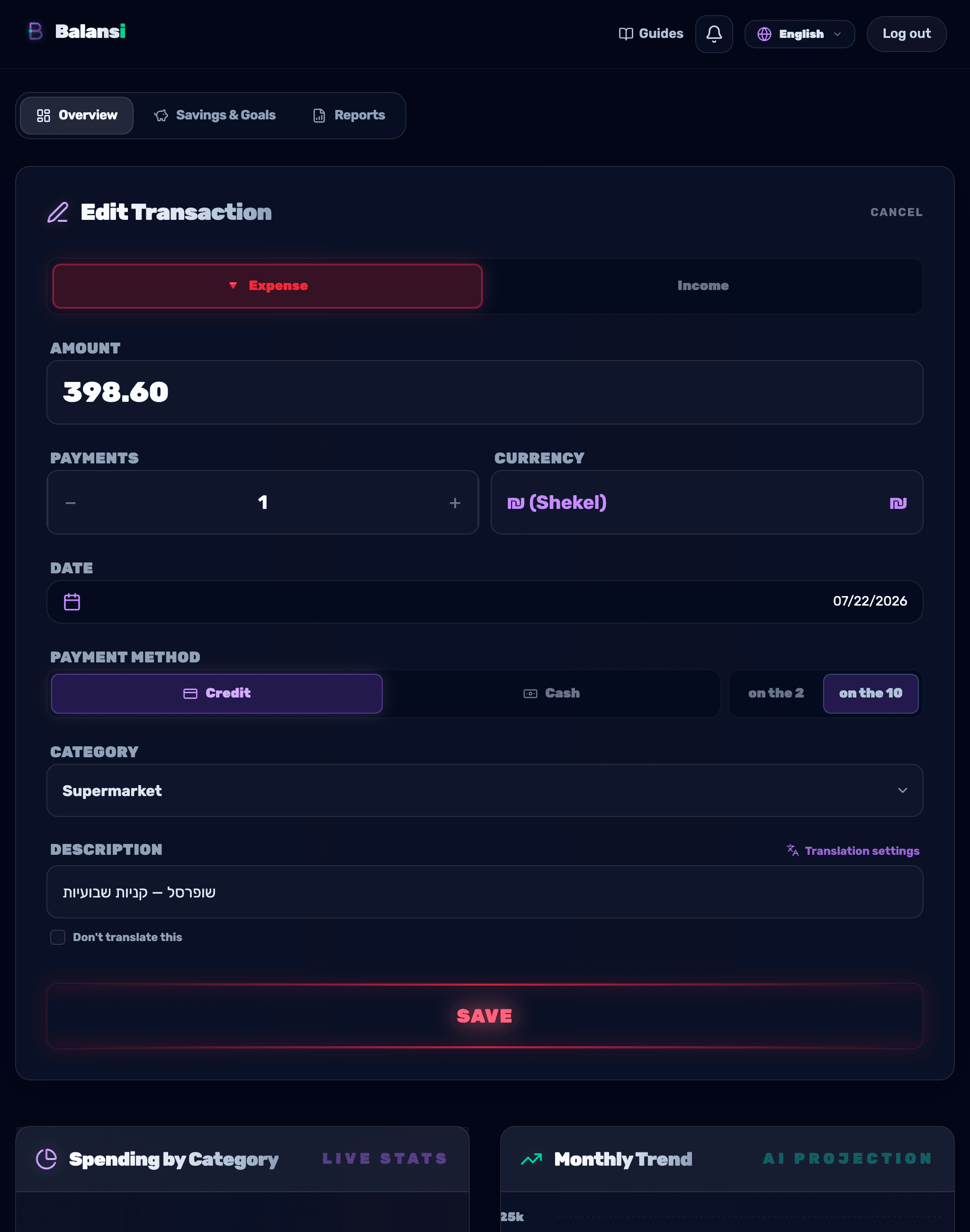
Tap a transaction in the Recent transactions list to open Edit transaction, update the details you need and tap Save.
- 3
Filter by type, category and amount
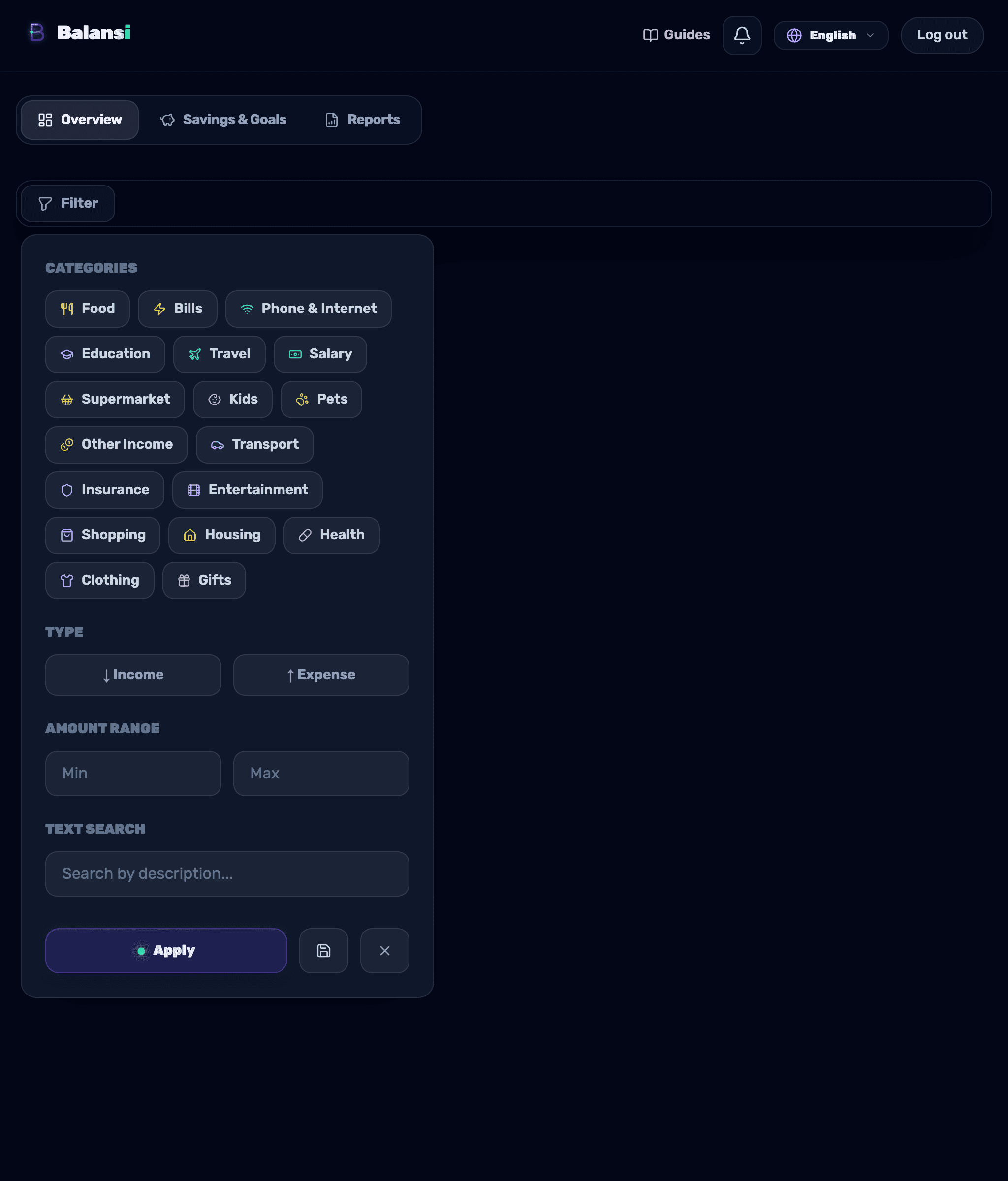
Tap Filter and choose a type (Income/Expense), categories, an amount range (min/max), or a text search by description. Tap Apply filter, and if you want to reuse the setup later, tap Save filter and give it a name.
- 4
Customize how the list looks
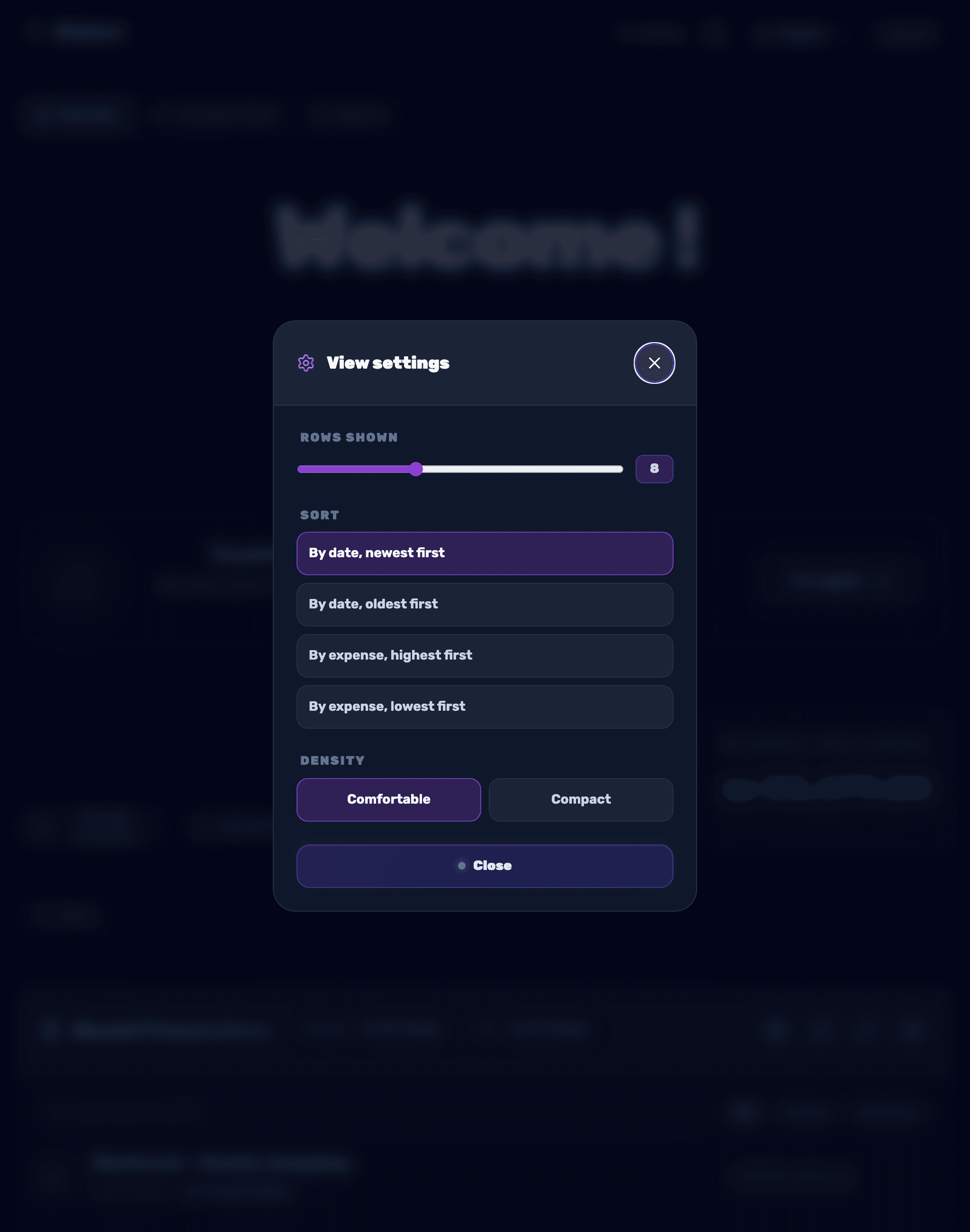
Tap View settings to choose a sort order (for example by date, newest to oldest), density (Comfortable or Compact), the number of rows shown, and even switch to Expanded view for a fuller picture.
- 5
Quick search and grouping by day
Use the Quick search field to find a transaction by description, or turn on Group by day to see transactions organized day by day. You can also quickly filter by All / Income / Expenses.
- 6
Smart translation and term dictionary
If your household has an AI plan, the add-transaction form shows a "Translation settings" button next to the description field. There you can turn smart automatic translation of transaction descriptions (into your display language) on or off, and manage a "dictionary" — terms, names and brands the AI should not translate (like a store name). You can also mark "Don't translate this description" on any single transaction to skip translation just for it.