Getting Started
Welcome to Balansi! This guide walks you through everything you need to get started: from signing up and verifying your email, through the onboarding questionnaire, to adding family members to your shared budget.
- 1
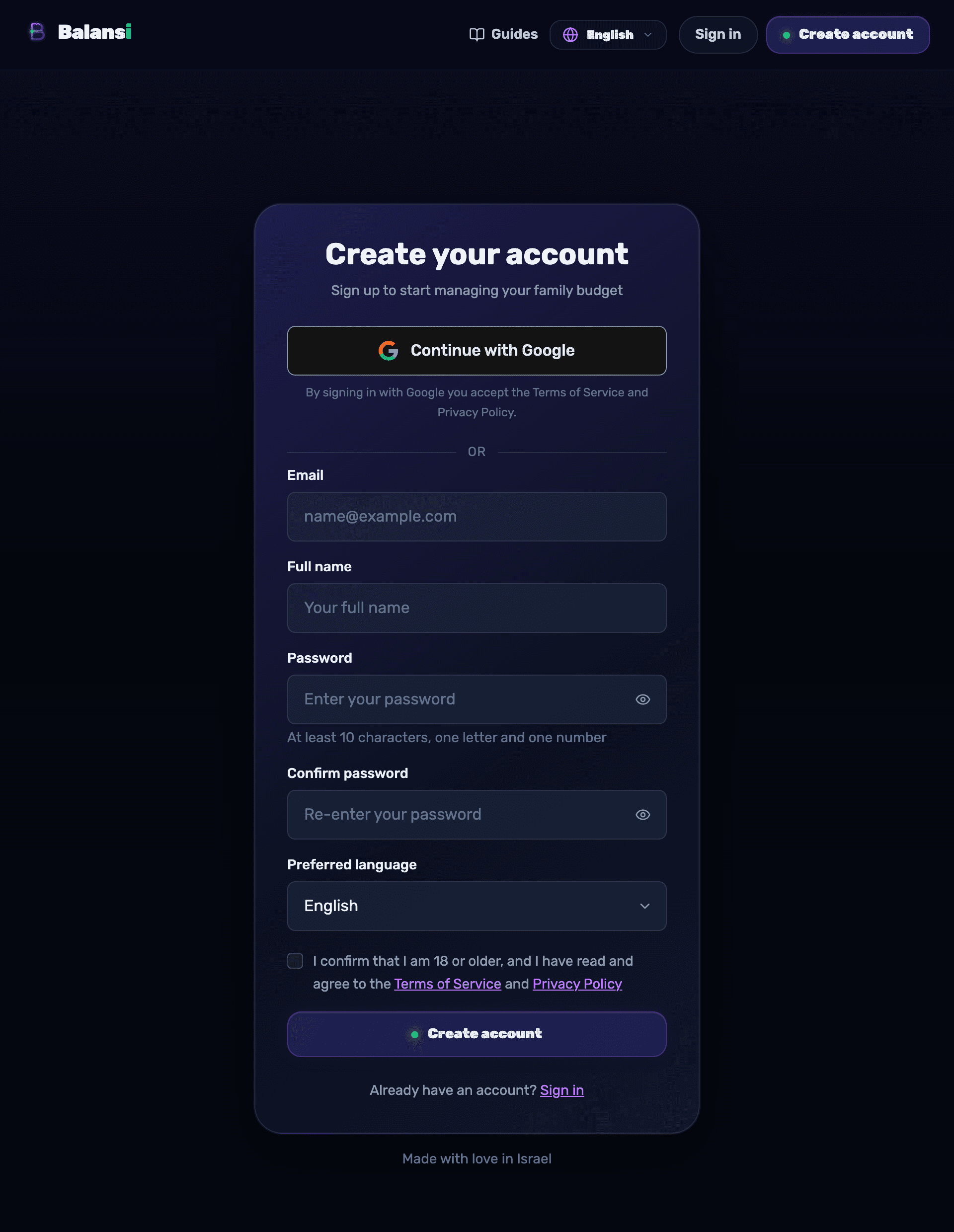
Create your account
On the sign-up screen, enter your full name, email, and a password (at least 10 characters, one letter and one number), then select "Sign up." You can also sign up faster with "Continue with Google." Before submitting, you need to check the box agreeing to the Terms of Service and Privacy Policy.
- 2
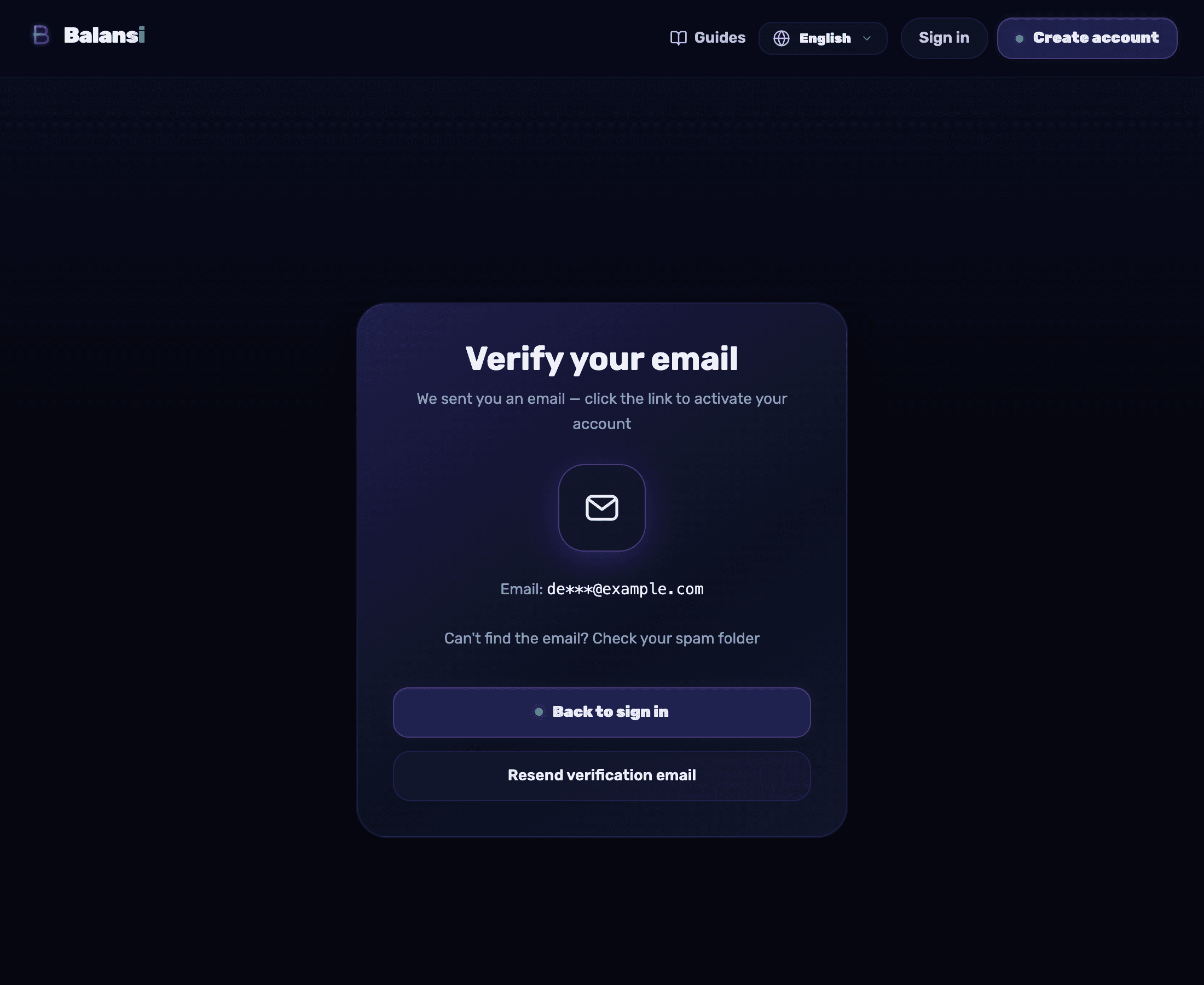
Verify your email
After signing up you'll land on the "Verify your email" screen and receive a verification email. Click the link in the email to activate your account; if it doesn't arrive, check your spam folder or select "Resend verification email."
- 3
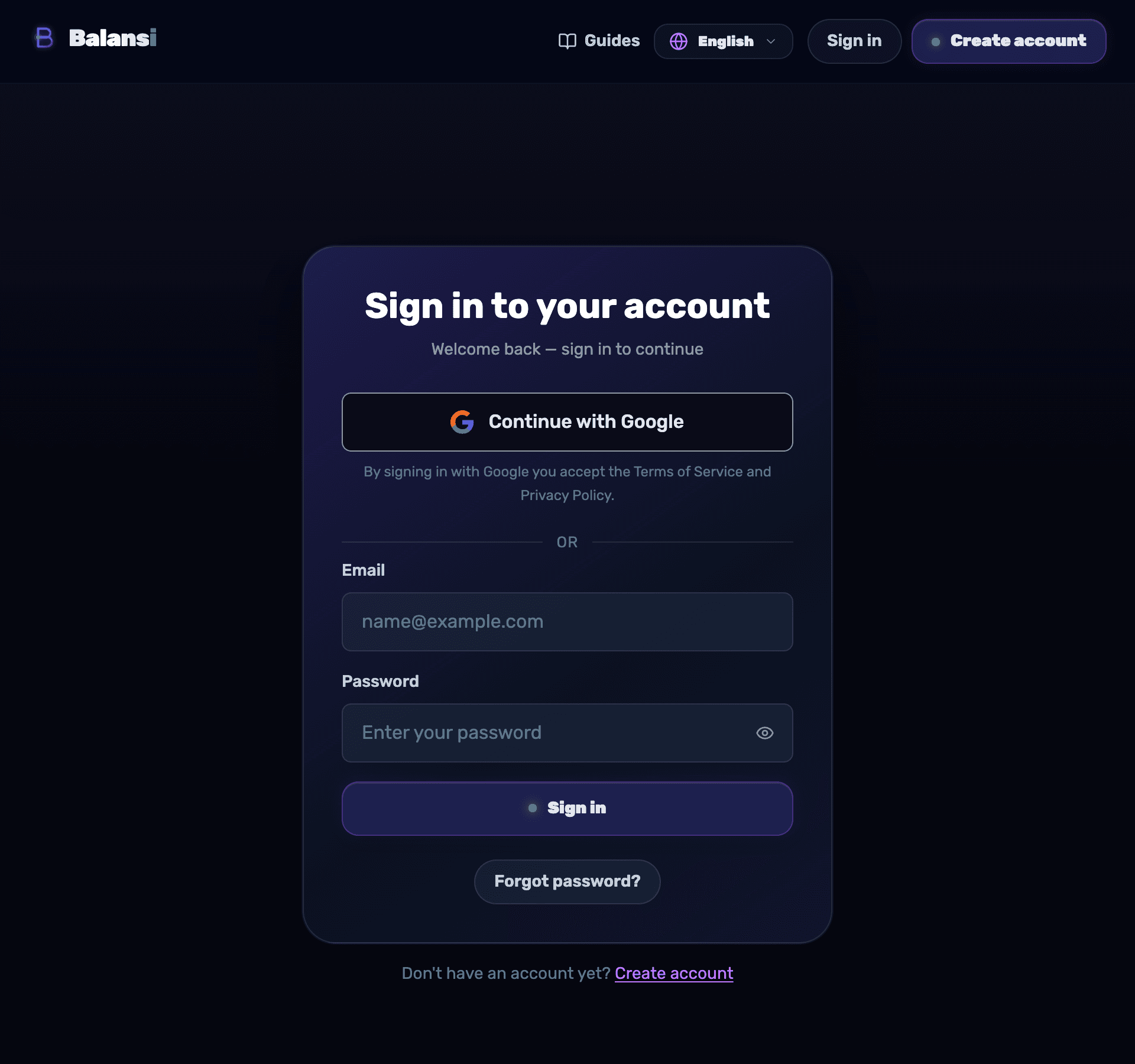
Log in
Once your email is verified, return to the login screen, enter your email and password (or use Google), and select "Log in."
- 4
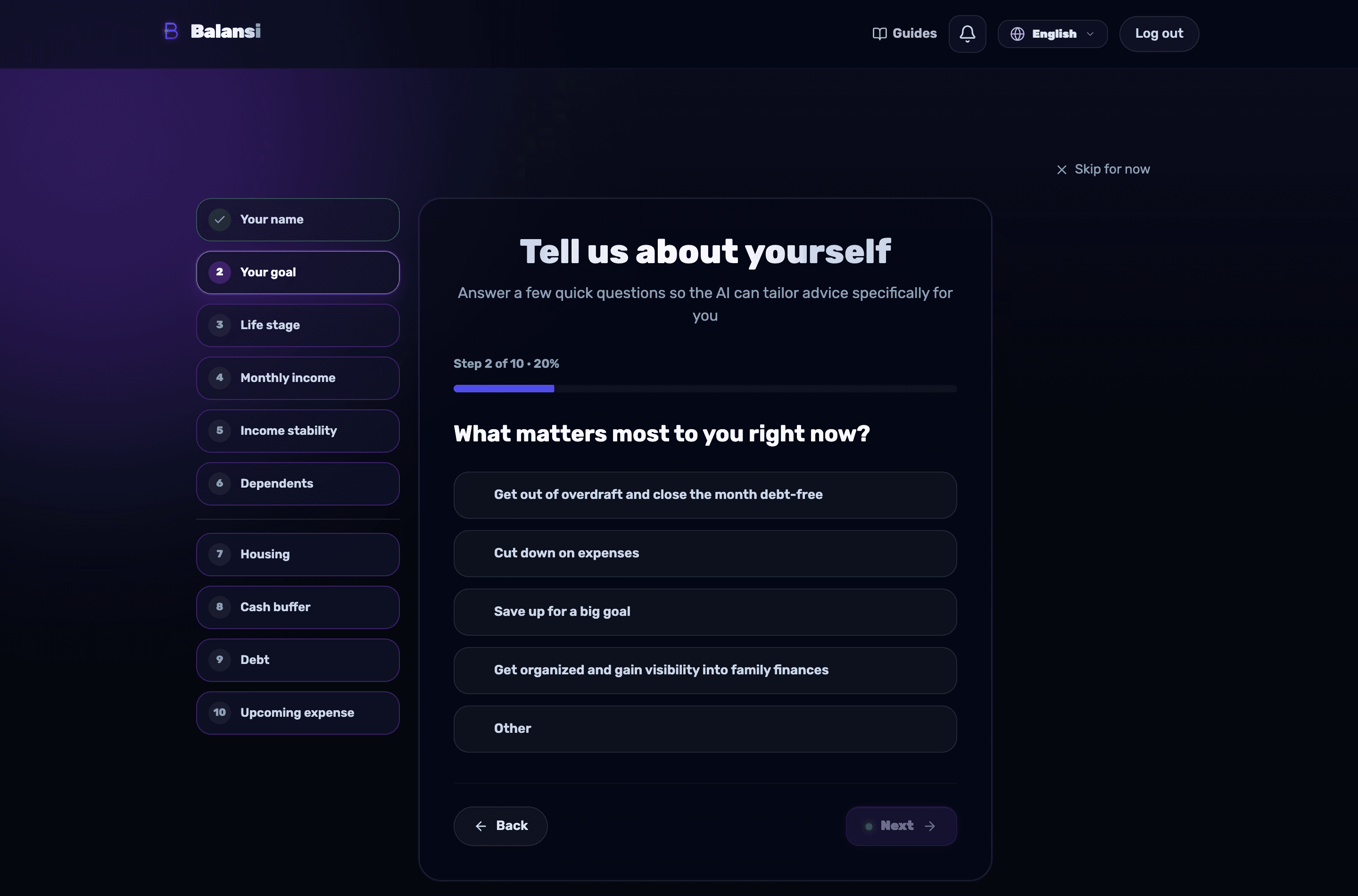
Answer the "Tell us about yourself" questionnaire
On your first visit you'll be asked a few short questions — what matters most to you right now, life stage, income range, income stability, and dependents — followed by a few optional refinement questions (housing, safety cushion, debts, and any big upcoming expense) that help the AI sharpen its recommendations. Move between questions with "Next" and "Back" — every answer is saved instantly, and if you stop midway you'll continue from the same spot next time. You can also select "Skip for now" and complete it later.
- 5
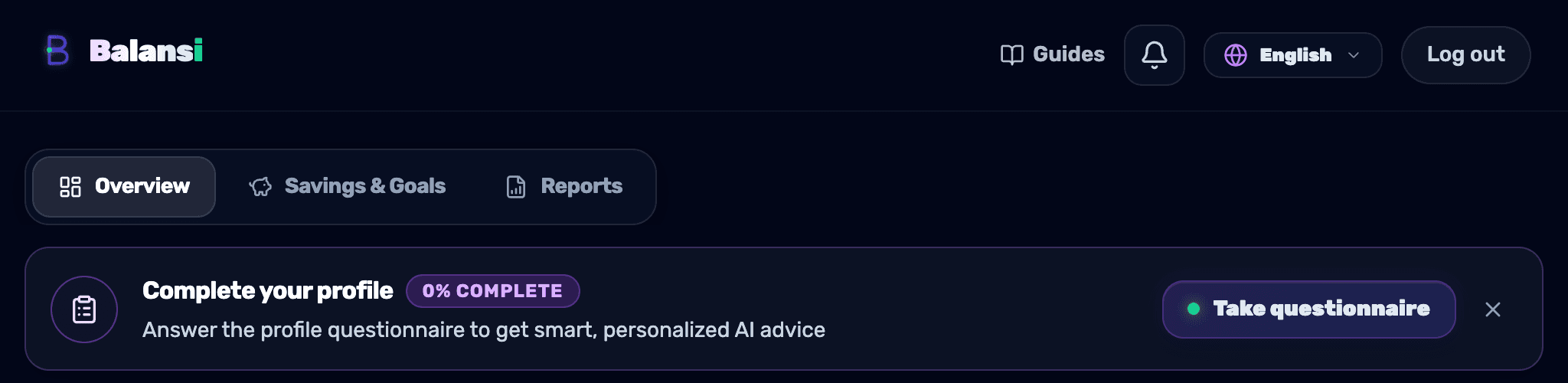
Finish the questionnaire later
If you skipped it, a "Complete the questionnaire" reminder appears on the dashboard with a button that takes you straight to finishing it, so the AI can tailor more accurate recommendations for you.
- 6
Add family members to the account
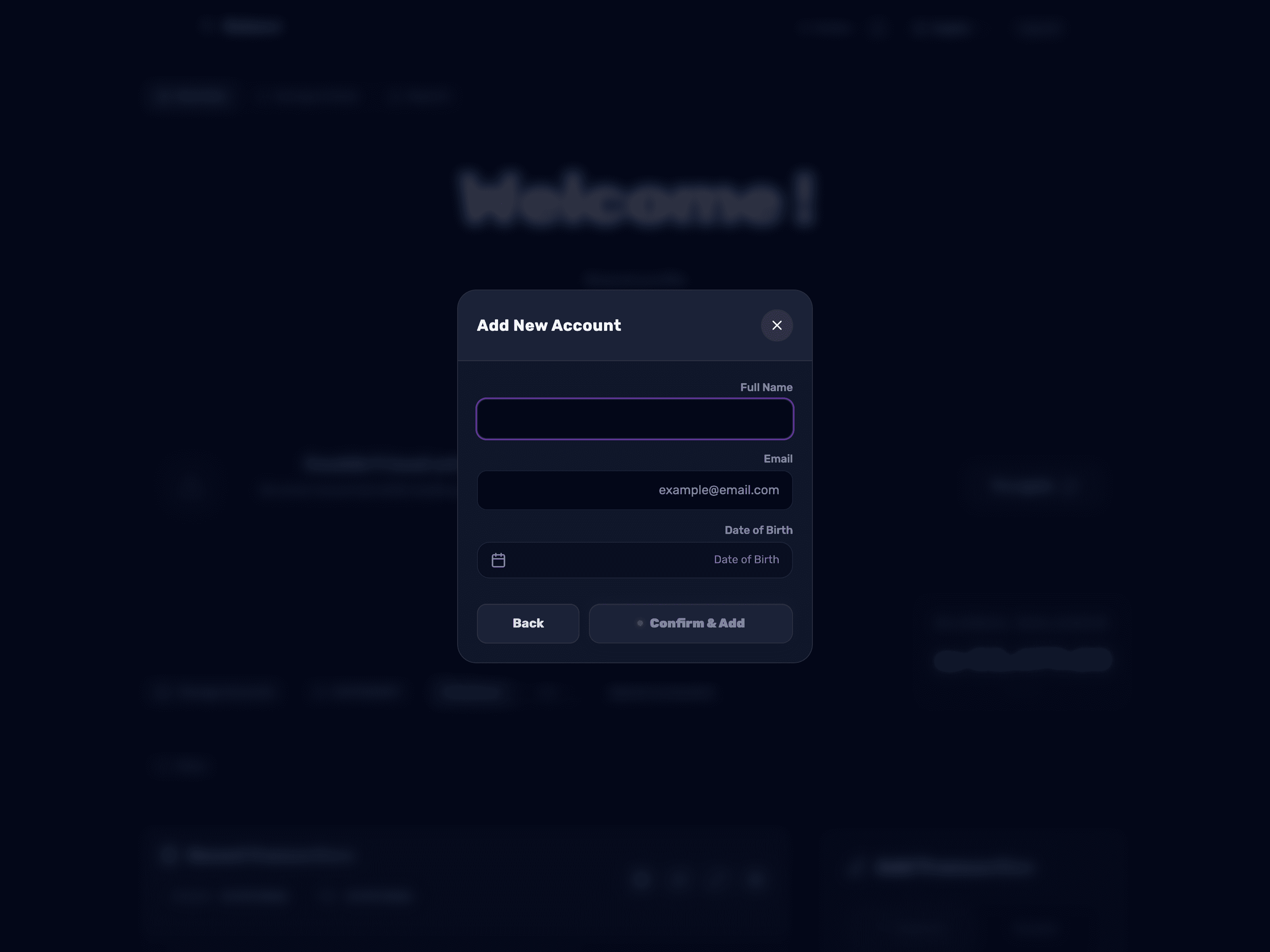
On the dashboard, select "Manage accounts" to open the "Manage household accounts" screen, then select "Add account." Enter the family member's full name, email, and birth date, and select "Confirm and add" to attach them to the shared profile.