Budgets and Smart Recommendations
In the budgets section you set how much you plan to spend per category each month and track your usage against it in real time — and Balansi also offers personalized recommendations that get sharper over time.
- 1
Open the budgets panel
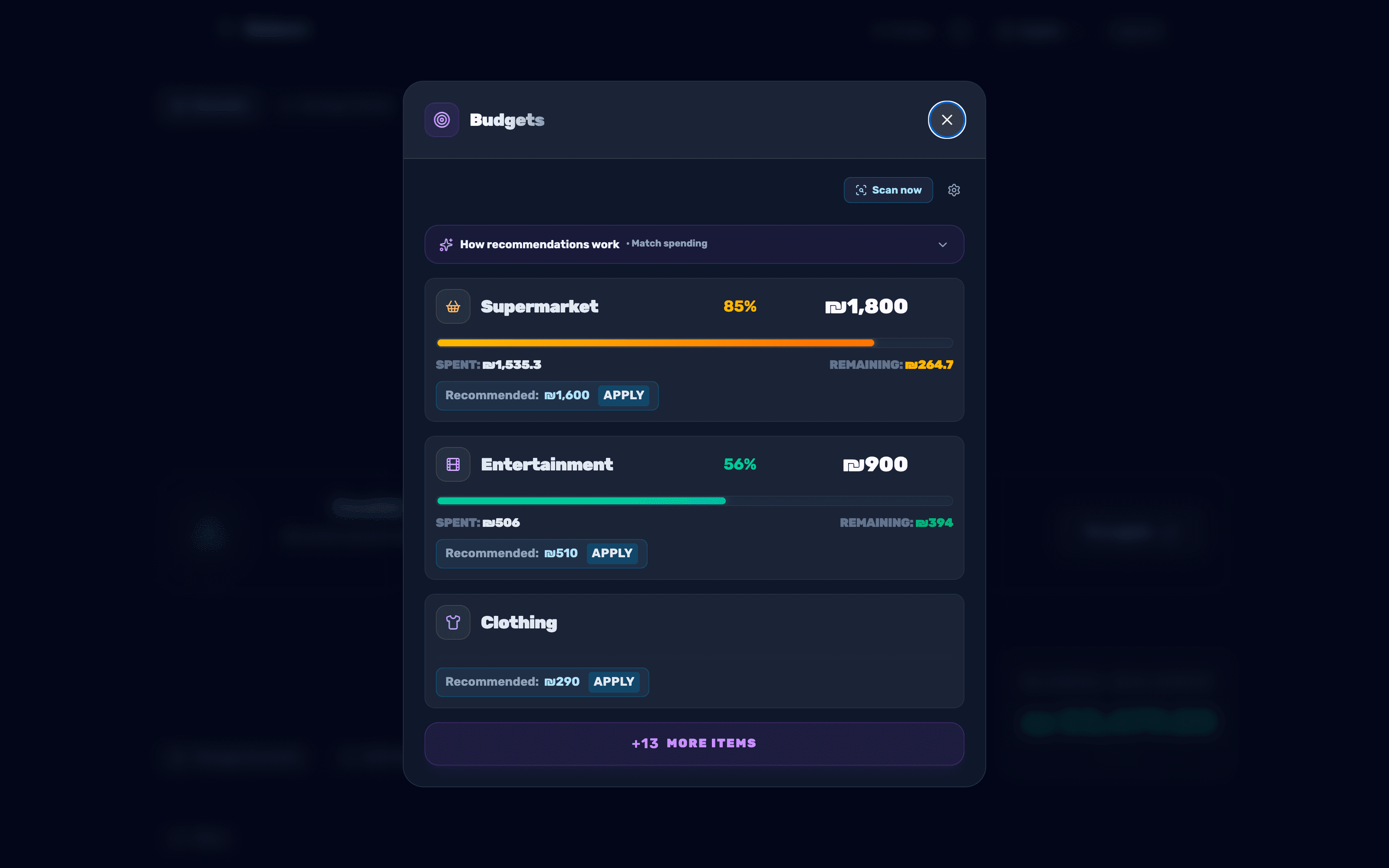
Tap the target icon labeled "Budgets" to open the budgets panel. You will see a list of budgeted categories, sorted by default by their usage percentage. When there are more categories than the display limit, a "+N more items" button appears at the bottom to open the full list.
- 2
Set a budget for a category
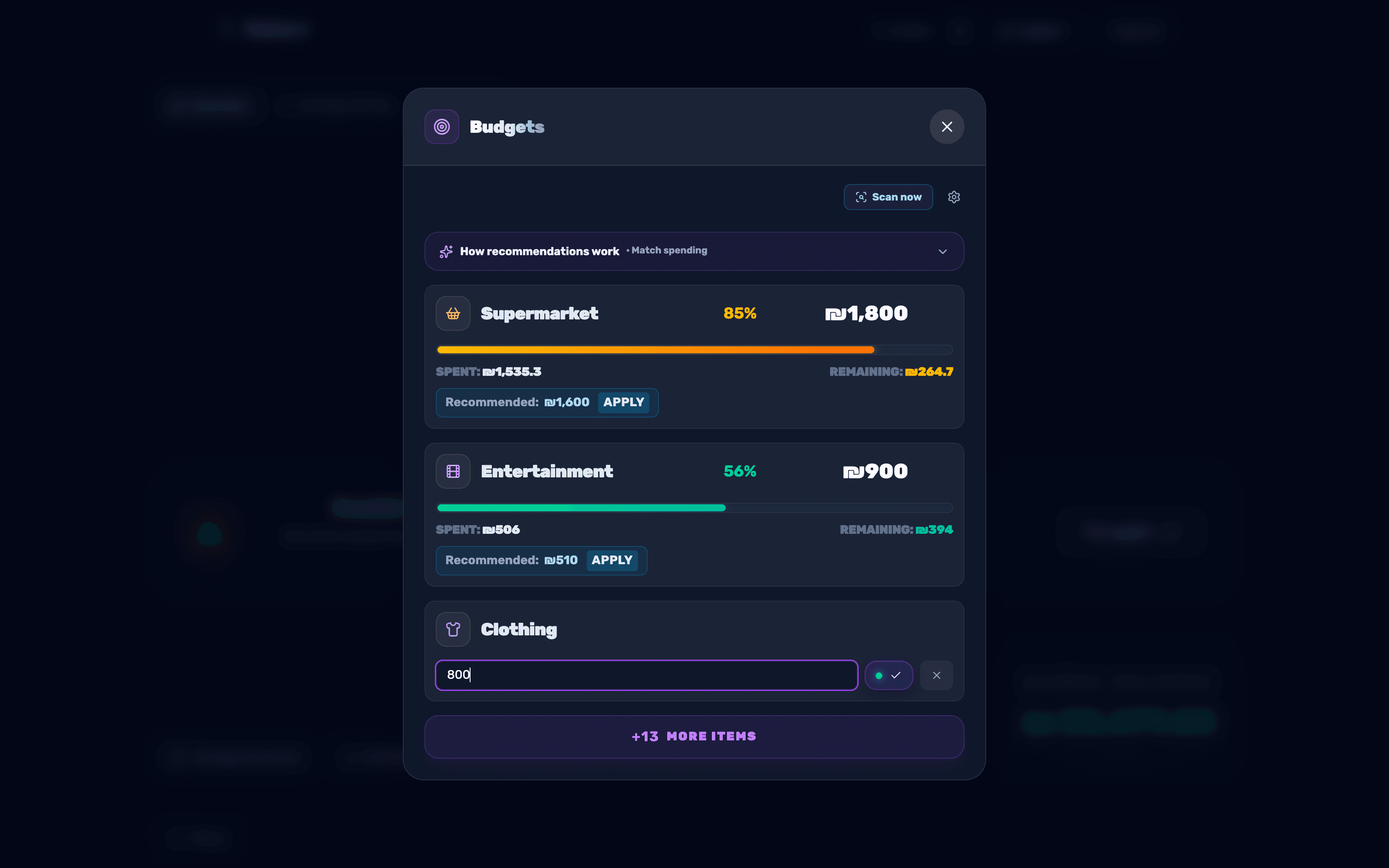
Next to any category without a budget you will see a "Set budget" button. Tap it, type a monthly amount in the field that opens, and confirm by tapping the checkmark. You can always edit an existing amount via the edit icon next to it, or delete it.
- 3
Track usage and overspending
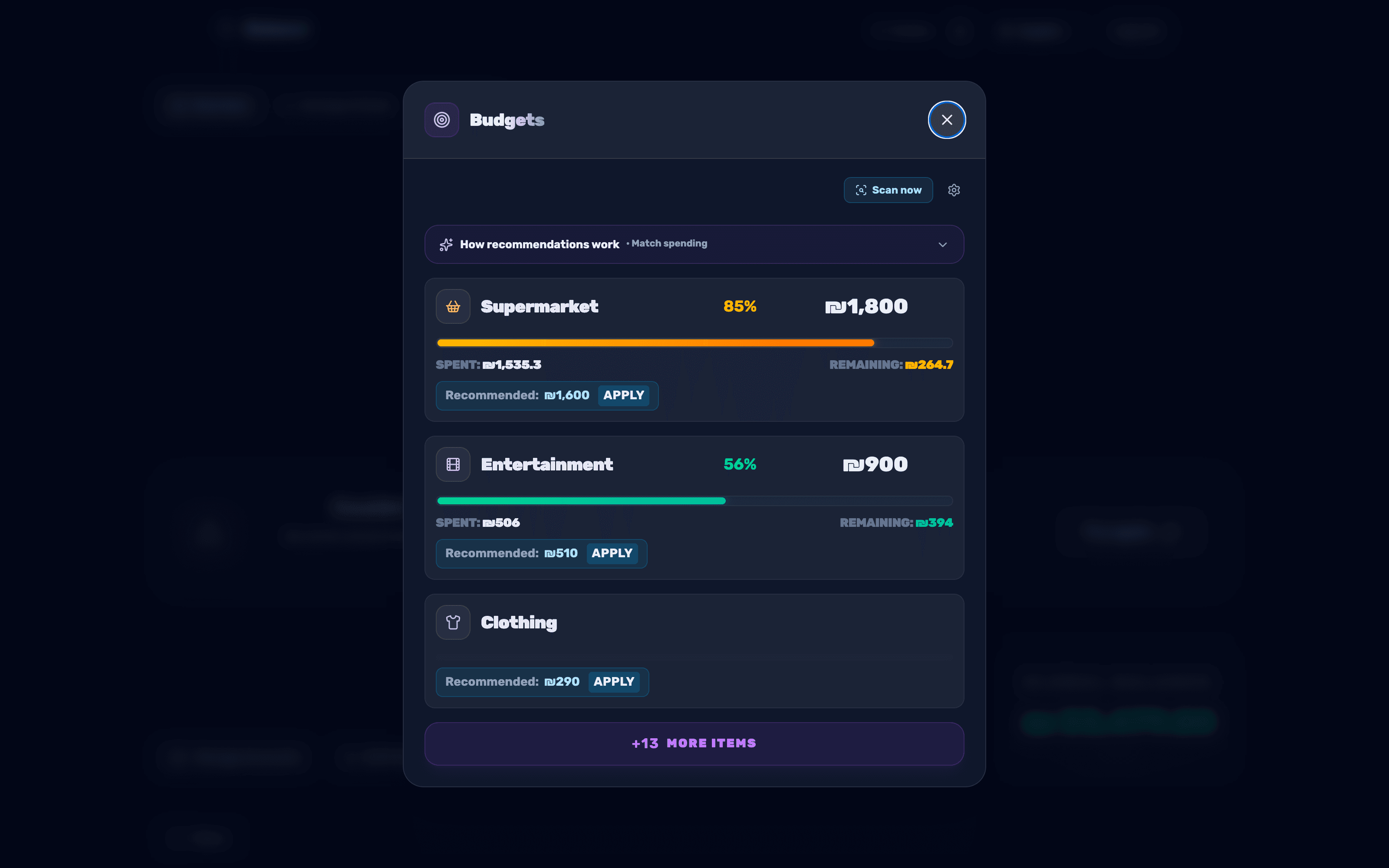
Every category with a budget shows a progress bar with the usage percentage, alongside "Spent" and "Remaining". When spending crosses the limit, a red "Over budget" label appears with the amount you went over by.
- 4
Scan for up-to-date recommendations
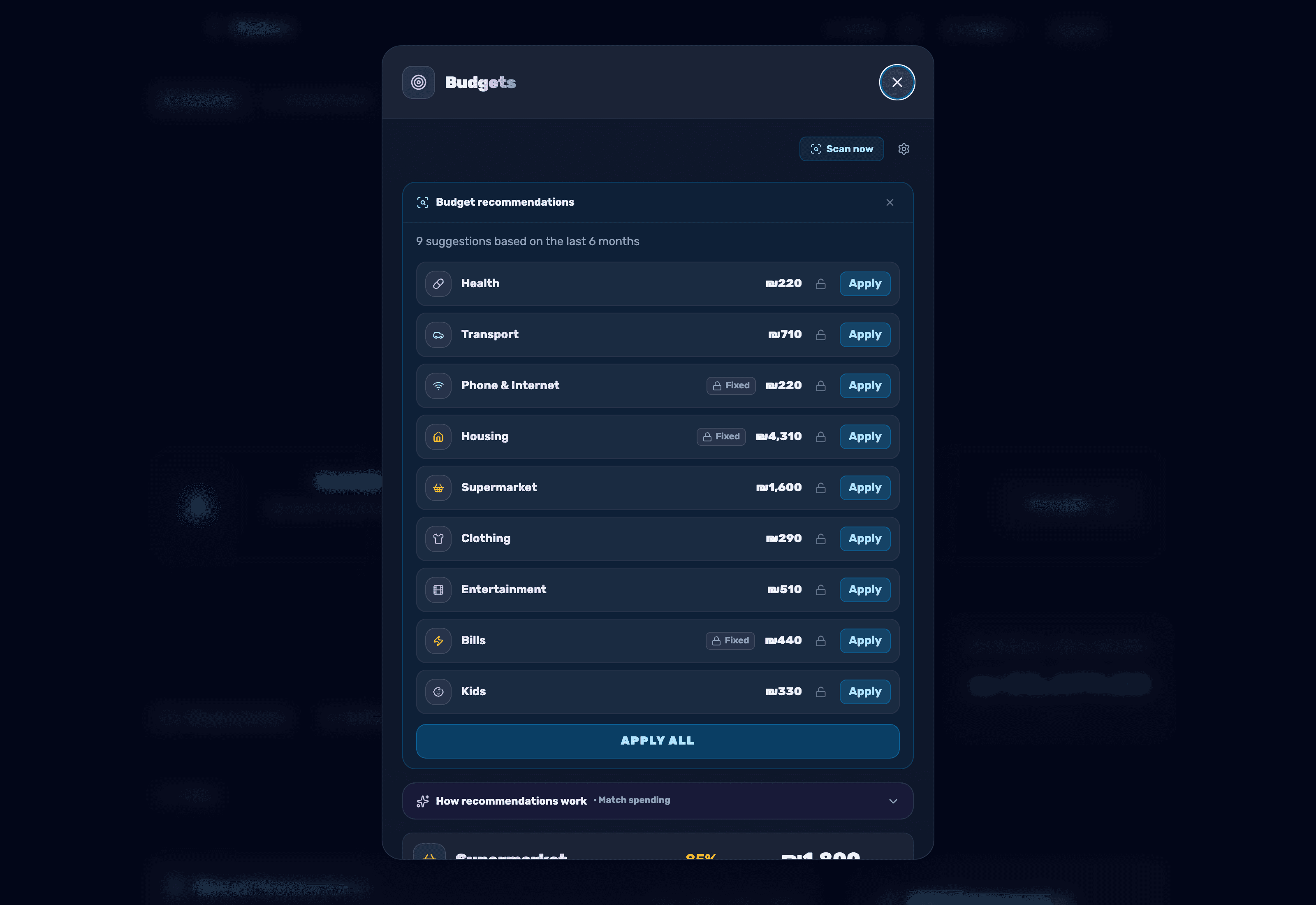
Tap "Scan now" to open the "Budget recommendations" panel — it shows update suggestions based on the last six months. Apply a single suggestion with "Apply", or all of them at once with "Apply all".
- 5
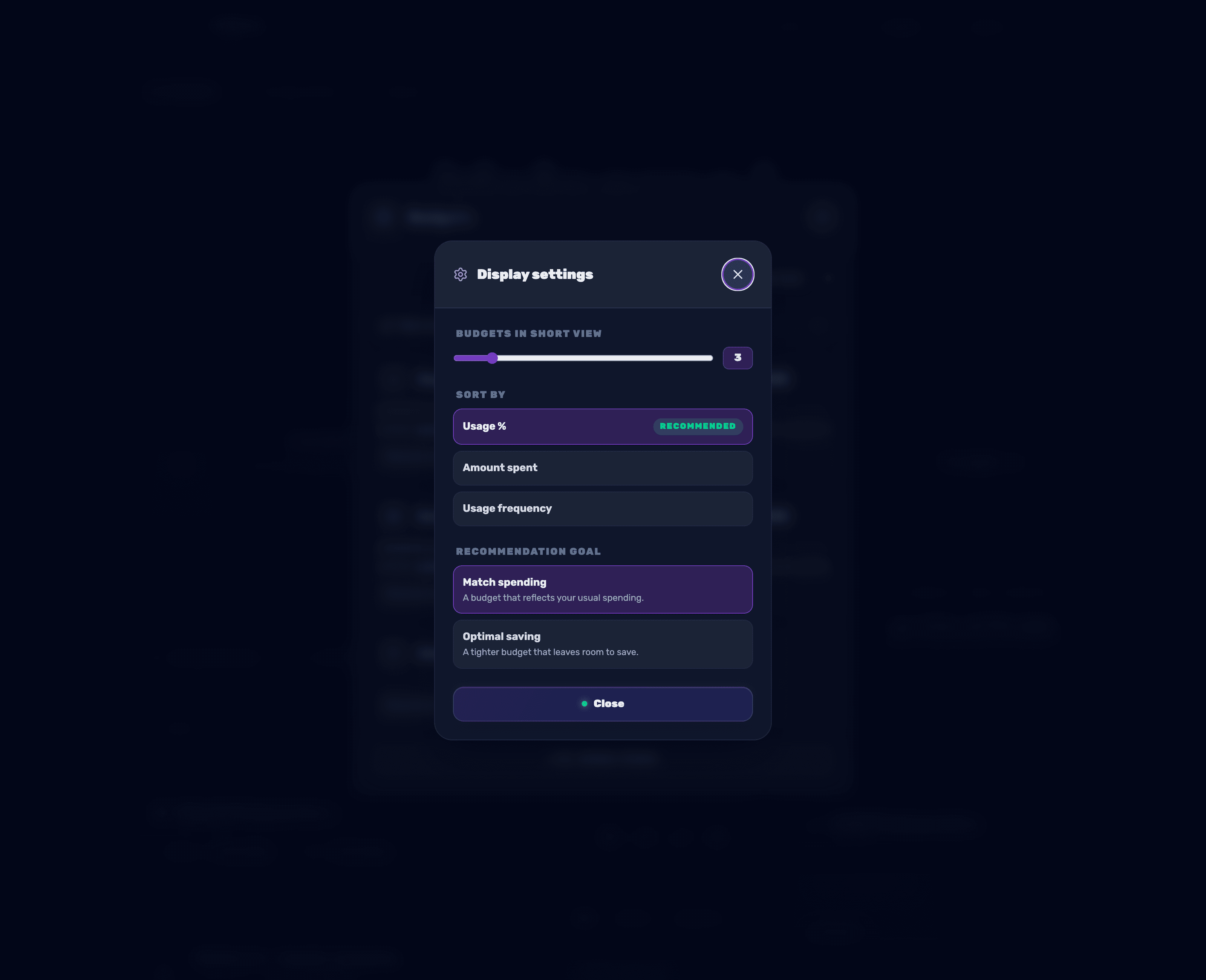
Adjust the recommendation goal
In the settings icon (gear) you will find "Recommendation goal": "Matches spending" suggests a budget that reflects your habits, while "Optimal savings" suggests a tighter budget that leaves room to save. There you can also choose how the category list is sorted, as well as adjust "Budgets in short view" — how many rows are shown before you need to click "more items".